
How to Use Android Studio Quail 4: Bundled Skills, Parallel Agents, and Layout Inspector
A practical guide to Android Studio Quail 4 stable: bundled Android skills, parallel-chat status, Summary of Changes, Firebase in Agent Mode, and recomposition state reads.
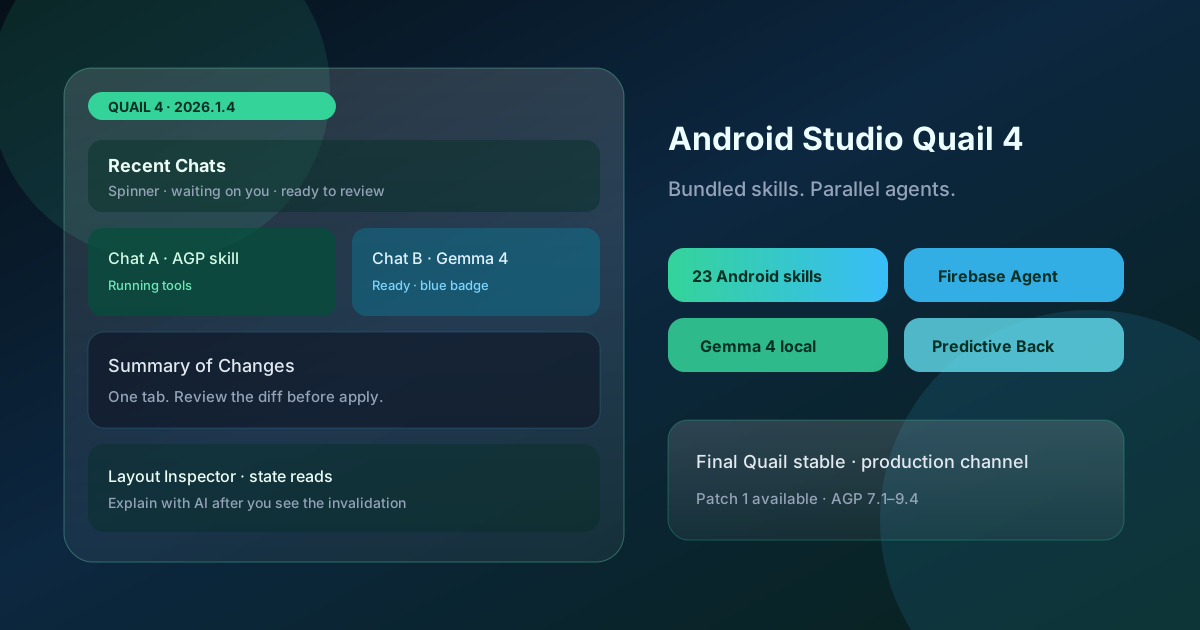
Android Studio Quail 4 (version line 2026.1.4, including Patch 1) is the last stable drop in the Quail family. Google’s 1 September 2026 product post and the current Studio release notes treat it as production-ready. The useful work is not a new mascot name. It is the set of agent and inspector tools that are now on by default.
This guide is a how-to. It assumes you already know Agent Mode exists. It covers what Quail 4 actually changes in daily work: 23 bundled Android skills, parallel-chat status, a single Summary of Changes tab, Firebase skills in Agent Mode, and recomposition state reads in Layout Inspector.
What you need
- Android Studio Quail 4 | 2026.1.4 or Patch 1. Download from the official Studio page or use Help → Check for updates (Android Studio → Check for updates on macOS).
- Android Gradle Plugin in the range Google lists for Quail 4: AGP 7.1–9.4.
- A Google account signed into Studio if you use the default Gemini path.
- Optional: 12 GB RAM minimum if you will run the smallest Gemma 4 local models; Google recommends 32 GB+ for comfortable local agent work. Details live on the local model hardware notes.
- For Layout Inspector state reads: Compose UI 1.10.0 or later (
compose.ui:ui:1.10.0, BOM 2025.12.01 or newer).
If you are still on Panda 4, upgrade on a spare install first. Quail 4 is a different year line (2026.1.x).

1. Let bundled Android skills fire before you write a long prompt
Generic models still invent last-year AGP flags. Quail 4 ships 23 curated Android skills inside the IDE. Google built them to the open Agent Skills spec and lists them in the Android skills catalog.
You do not download a zip. When you send a prompt, Studio matches it against skill metadata and attaches the right packet. Official examples that ship preloaded:
How to use them without fighting the agent
- Open Agent Mode on a real module, not an empty sandbox if you can avoid it.
- Name the framework in the first sentence: “Upgrade this module to Navigation 3” or “Profile jank on the home feed.”
- Watch the agent mention or apply a skill. If it starts inventing Gradle syntax from 2024, stop and ask it to use the bundled AGP skill.
- Add team skills under the paths Google documents in custom skills.
- If you need the same packets outside Studio, install Android CLI and run
android skills add --all. - To turn bundled skills off for a session, use the IDE-wide toggle in Settings. Google documents an opt-out; do not delete files by hand.
Keep prompts short. The skill is supposed to carry the boilerplate. A 400-word system prompt on top of a bundled skill usually fights it.
2. Run parallel chats and read the new status row
Parallel conversations shipped in Quail 2. Quail 4 adds the status layer that makes them usable.
Google’s documented layout:
- Multiple Agent Mode chats can sit as editor tabs.
- The Recent Chats panel shows live state: a spinner while tools run, a red marker when the agent is blocked on you, a blue badge when a background task is ready to review.
- Class names, methods, and file paths in replies become hyperlinks into the project.
- Reasoning-model “thought” blocks are collapsible, so the transcript stays scannable.
- When a multi-step job finishes, Task and Walkthrough artifacts collapse into one Summary of Changes tab. Review that tab before you keep the patch.
A safe three-tab pattern
- Tab A, cloud Gemini: “Refactor this list to lazy grid; do not touch networking.”
- Tab B, Gemma 4 local if your machine qualifies: “Draft KDoc for the public API in this package only.”
- Tab C, Ask-style prompt: “Explain why this Composable recomposes when the pager settles.”
Do not let two write-tabs own the same files. Parallel is for isolation, not for racing two agents on HomeViewModel.kt.
Switch models per chat if the work differs. Google still points at Android Bench when you need a sense of which model class is less wrong on Android tasks. Treat Bench as a scoreboard, not a warranty.

3. Wire Firebase from Agent Mode instead of a second wizard
Quail 4’s release notes add Firebase agent skills inside Agent Mode. The agent can enable and configure services such as Authentication and Cloud Firestore without you leaving the IDE.
Steps that match the official flow
- Open the project that should own the backend, not a throwaway sample unless you are rehearsing.
- In Agent Mode, ask to add Firebase Auth and Firestore using Studio’s Firebase skills.
- Complete the Google / Firebase sign-in and project-link prompts the agent surfaces.
- Confirm
google-services(or the current recommended Gradle hook) landed only in the modules you named. - Run one auth sign-in and one document write on an emulator before you restyle UI.
Keep API keys and service accounts out of source. If you also want a Gemini app rather than an agent that edits one, the older Gemini API Starter template plus Firebase AI Logic is still the cleaner client path.
4. Diagnose recomposition with Layout Inspector state reads
High recomposition counts are easy to see and hard to explain. Quail 4 documents Recomposition state reads in Layout Inspector (the capability first appeared in Panda 3 canary; the current stable notes keep it in the Quail 4 feature list).
How to run it
- Confirm Compose UI 1.10.0+.
- Open Layout Inspector on a running debug build.
- Right-click the recomposition column. Choose Observe Recomposition → Observe All, or observe a single node.
- Use the app until counts move.
- Click the blue count link on a node. The State Inspection panel lists reads from that cycle, including values that were invalidated.
- Use the header arrows to walk prior cycles on the same node.
- Click Explain with AI only after you have looked at the invalidated state yourself. The explanation is a second opinion, not a stack trace.
If the panel is empty, you are usually on an older Compose artifact or you never turned observation on.
5. Check predictive back in Compose Preview
Quail 4 adds Navigate Back and a Predictive Back Progress slider in Compose Interactive Preview. You can scrub the gesture without deploying.
Use it when you own custom transitions. It will not catch device-specific inset bugs. Ship a physical or emulator pass after the preview looks right.
6. Pick a model path on purpose
Quail 4 still gives a default Gemini model at no extra charge. Google says it may change that default to keep the free path usable. If you need a named model or more quota:
- Paste a Google AI Studio API key, or a key from another provider listed in remote models.
- Sign in with a Google AI Pro or Ultra plan for higher Studio limits.
- Use Gemini Enterprise if your org has it. Google says that path is rolling out and is available in current Canary for selected organizations.
Local Gemma 4 is a separate provider under Settings → Tools → AI → Model Providers → Gemma. Studio downloads and verifies weights. That path is covered in more depth in our earlier Gemma 4 local-model guide; use it when source must stay on the laptop.
A 45-minute lab
- Update to Quail 4 Patch 1.
- Open a feature module you already understand.
- Prompt Agent Mode to use the Profiler or Adaptive skill on one screen. Confirm a skill attached.
- Start a second chat that is not allowed to write the same files.
- Finish one write job and open Summary of Changes. Reject anything outside the named package.
- Turn on recomposition observation, tap the screen that feels janky, and read one invalidated state.
- Scrub predictive back in Interactive Preview if that screen has a custom pop.
What this release is not
It is not a new Android OS. It is not a replacement for AGP release notes. Bundled skills can still be wrong if your project is on a preview library the skill does not mention. Parallel chats will not serialize file locks for you.
Quail 2 LeakCanary-in-Profiler and Quail 3 Planning Mode and MCP marketplace remain in the product. Use them. This article does not repeat those walkthroughs.
Conclusion
Quail 4 is worth the update if you stop treating the agent as a chat box. Let bundled skills carry Android-specific procedure. Split write work across tabs and trust the red/blue badges. Review Summary of Changes like a pull request. Use Layout Inspector state reads before you rewrite a Composable “for performance.”
Download the stable channel, run the lab on a branch you can drop, and keep the skill catalog bookmarked next to AGP notes.
Sources
- Leverage Android skills and Gemma 4 in Android Studio Quail 4 — Android Developers Blog, 1 September 2026
- Android Studio Quail 4 release notes — last updated 18 September 2026
- Download Android Studio
- Android skills and skill catalog
- Custom skills in Android Studio
- Use a local model / Gemma 4 hardware notes
- Android Studio Quail 2 stable: parallel agents and LeakCanary
- What’s new: Android Studio Quail releases — Android Developers
- What’s new in Android development tools — Android Developers
Share this story


