
How to Use the Gemini App for Windows
Install Google's official Gemini desktop app on Windows 10 or 11, use Alt+Space over any window, connect Gmail and Drive, and know which features need a Google AI plan.
Opening a browser tab every time you need Gemini breaks flow. On 10 September 2026 Google shipped a native Gemini app for Windows 10 and Windows 11. It sits on the desktop, opens over the window you are already in, and talks to the same Google account you use on the phone and the web.
This guide covers how to install it from the official page, how the Alt + Space overlay works, what belongs in the full workspace, and which creative or agent features need a paid Google AI plan.
What the Windows app actually is
This is not a Chrome “Install page as app” shortcut. It is Google’s desktop client, announced by Erin Pettigrew (Director of Product Management, Gemini App) and confirmed the next day in the Google Workspace Updates blog.
Official facts that matter for setup:
- Available globally for Windows 10 and 11
- Download only from gemini.google/desktop
- Workspace, Workspace Individual, and personal Google accounts can use it
- Google describes the app as lightweight and quiet on the PC
- More native desktop capabilities are promised later; this is the first Windows drop
A macOS Gemini app already existed. Windows is catching up, not inventing a different product.

Install it the official way
- Open gemini.google/desktop in any browser.
- Choose the Windows download (x64 or ARM64 if the page offers both).
- Run the installer. Sign in with the Google account that already has Gemini history you want to keep.
- When asked, allow the app to stay available from the taskbar or system tray so you do not have to hunt for it.
- Pin it if you want a Start-menu tile as well as the hotkey.
Workspace admins can turn the Gemini app on or off for a domain. End users have no extra setting to flip after the download, according to Google’s Workspace post. If the app is blocked at work, that is an admin policy, not a missing checkbox on your PC.
Do not install a random “GeminiSetup” from a file-hosting site. The only URL Google publishes for this client is gemini.google/desktop.
Use Alt + Space without leaving your document
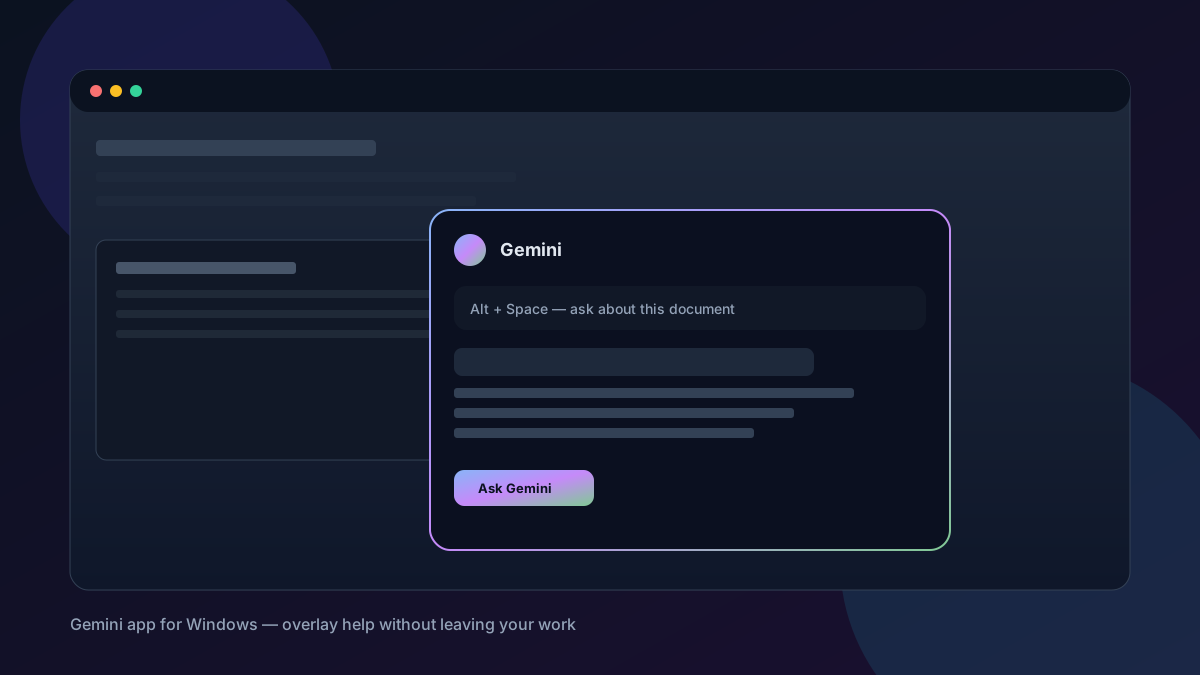
The feature Google leads with is the overlay.
- Click into Word, Excel, a browser, or a code editor.
- Press Alt + Space.
- Gemini opens over that work.
- Ask a short question, then jump back.
Good overlay jobs:
- Fact-check a sentence you just wrote
- Generate three title options for a slide
- Rephrase a paragraph in a calmer tone
- Explain an error message you pasted from another window
If Alt + Space already belongs to PowerToys Run, Windows Terminal, or another launcher, open Gemini settings and pick a different preset or a custom shortcut. Reviewers who used the shipping build report that the shortcut is configurable. Confirm the binding on your machine rather than assuming Alt + Space is free.
You can also open Gemini from the taskbar or system tray when you want the full window instead of a quick overlay.
Use the dedicated workspace for longer work
The overlay is for interruptions. The main window is for sessions that last more than a minute.
Inside the app you can use the same Gemini surfaces you already know on the web:
- Chat history synced to the signed-in account
- Drafts that pull from Gmail and Google Drive when those connections are on
- Gemini Spark, the 24/7 personal agent, if your plan includes it
- Image generation with Nano Banana
- Video direction with Gemini Omni
A practical loop for a project brief:
- Open the full Gemini window.
- Ask: “Draft a one-page project summary from my Drive folder named Q3 launch and the related threads in Gmail.”
- Check the citations or file names Gemini used.
- Copy the draft into Docs or keep iterating in the same thread.
Google’s footnote on Spark, Omni, and similar extras is blunt: a Google AI subscription is required, availability varies, and users must be 18+. Do not promise Spark or Omni to a free account until that account actually shows the feature.

Create images and videos from the desktop
Google lists two creative paths in the Windows app:
- Nano Banana for still images (presentation art, mock UI, simple diagrams)
- Gemini Omni for higher-quality video when your plan includes it
Keep prompts specific. “Blue banner for a Windows how-to, 16:9, no logos, desk and keyboard, natural light” beats “make a nice picture.” Export the file, then drop it into the slide deck. Do not treat generated art as a substitute for licensed product screenshots.
What this app is not
- It is not Copilot. Microsoft’s assistant stays in Windows; Gemini is Google’s client that you installed on purpose.
- It is not a replacement for Gemini in Chrome if you live in the browser all day. Use whichever surface is closer to the tab you already have open.
- It is not a guarantee that every Gemini Labs experiment (Daily Brief, Spark, Omni) is unlocked. Those follow account, region, age, and plan rules.
- It is not finished. Google said more native desktop capabilities will follow.
Privacy and work accounts
Sign in with the account that matches the data you want Gemini to see. A personal Gmail login will not draft from a work Drive unless that work content is shared to the personal account.
Do not paste passwords, customer records, or unpublished financials into the overlay just because it feels local. The Windows shell is local; the model call still follows Gemini’s cloud and Workspace policies.
If you use a managed Windows PC, check with IT before you allow the installer. Workspace admins already have a Help Center article to enable or disable the Gemini app for the domain.
Conclusion
The Gemini app for Windows is a thin desktop shell around the Gemini you already use: overlay with Alt + Space, a full workspace for longer jobs, optional Spark for multi-step work, and Nano Banana / Omni for media when your plan allows it. Install only from gemini.google/desktop, sign in with the right account, and rebind the hotkey if another tool already owns Alt + Space.
If you only need a one-off chat, the website is enough. If you keep alt-tabbing out of Word to ask Gemini a question, the September 2026 Windows app is the official fix.
Sources
- The Gemini app is now available for Windows — Google
- The Gemini desktop app is now available for Windows — Google Workspace Updates
- Download Gemini for desktop — Gemini
- Gemini Spark overview — Gemini
- Gemini Omni video generation — Gemini
Share this story


