How to Use Gemini in Chrome on Android: Summaries, Calendar, and Auto Browse
A practical Android guide to Gemini in Chrome: open the assistant, summarize pages, send details to Calendar and Keep, and run Auto Browse tasks without leaving the browser.
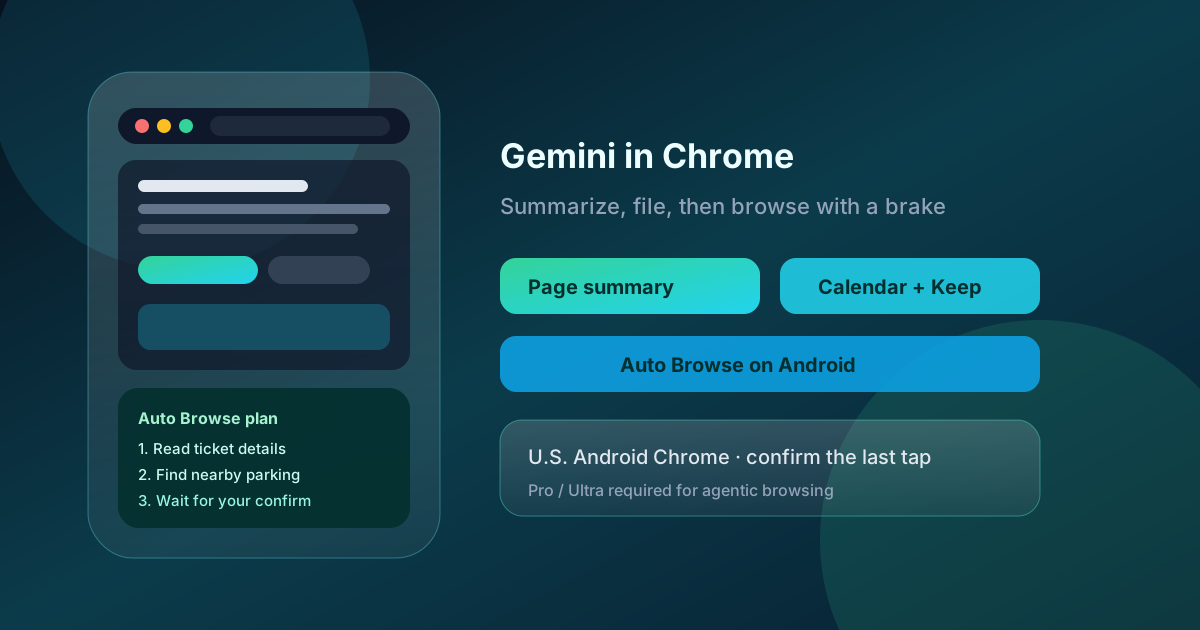
Gemini in Chrome is no longer a desktop-only experiment. On 18 August 2026, Google said the browsing assistant is available to all Android users in the United States, with the Gemini icon in Chrome’s top bar. Summaries, page questions, Calendar and Keep hand-offs, and on-page image tools work on that broader rollout. Auto Browse, the agent that taps through multi-step web tasks, is still limited to Google AI Pro and AI Ultra subscribers on Android in the U.S.
This guide is a user walkthrough based on Google’s Chrome blog posts and Chrome Help. It does not assume you already use Gemini Intelligence on the home screen.
What Gemini in Chrome actually does
Inside Chrome, Gemini sits on the current page instead of opening a separate chat app. Official capabilities on Android include:
- Summarize a long article or explain a dense section
- Answer questions about the page you are looking at
- Send details into Google Calendar or Google Keep without copying tabs
- Generate or customize images on the page with Nano Banana
- For paid U.S. subscribers: Auto Browse for chores such as booking parking, updating a recurring order, or lining up travel options
Google says you open it from the Gemini icon or the three-dot menu on Chrome’s top bar. If you do not see either control, you are not on the current Android Chrome build or you are outside the U.S. rollout.
Before you start
Check these items once. Missing any of them is the usual reason the Gemini chip never appears.
- Update Chrome from Play Store
- Sign in to Chrome with a personal Google Account (school and work accounts follow admin policy; Incognito is excluded)
- Use English as the device language if you want Auto Browse
- Be 18 or older and in the United States for the features Google has documented
- Set Chrome Safe Browsing to Standard or Enhanced
- For Auto Browse only: an active Google AI Pro or AI Ultra plan on that same personal account
Google’s Chrome Help page for Auto Browse still lists a gradual release. A Pro plan does not guarantee the control is on every phone the same week.
1. Open Gemini on a page and get a usable summary
- Open the article or docs page in Chrome.
- Tap the Gemini icon in the top bar (or More → Gemini).
- Ask for a summary with a constraint: “Give me five bullets and flag anything that looks like a price or deadline.”
- Ask a follow-up that names a heading on the page, not a vague “tell me more.”
Keep the sheet open while you scroll. Gemini in Chrome is built around the visible tab. If you jump to a new site mid-answer, start a new request so it does not mix two pages.
A good first test is a long product changelog or a municipal parking page. If the summary invents a fee or a date, treat the page as source of truth and stop using the assistant on that site.
2. Hand work to Calendar and Keep
Google’s Android announcement calls out Calendar and Keep as first-party connections so you do not screenshot a page and retype it.
Practical pattern:
- Open a confirmation email in Gmail’s web view or keep the ticket page open in Chrome.
- Open Gemini in Chrome.
- Ask it to create a Calendar event with the date, time, and address shown on the page.
- Or ask it to drop ingredients, packing items, or a short checklist into Keep.
Review the draft before you save. Agents copy what they parse. A “Saturday 6 p.m.” on a flyer that is actually door time, not show time, will land on your calendar as-is.
Disconnect apps you do not want Gemini to read from Gemini Apps settings if you share the phone or mix work mail into the same profile.
3. Run an Auto Browse task without losing the last click
Auto Browse is the agentic piece. Google’s public examples on Android include reserving parking from ticket details (SpotHero is the named example), switching a recurring pet-food order, and organizing travel. Chrome Help lists broader computer-side examples that the same product family supports: compare products and add to a cart, book lodging, make restaurant reservations, fetch receipts.
It is not a silent background robot. Official safety rules:
- Review the plan before you tap Start Task
- Gemini may pick sites you did not name and may share personal details with those sites
- It should ask for confirmation on sensitive steps (purchases, posts, form submits, health or finance sites)
- You can Take over task, Resume / Give back task, or Stop
- Daily multi-step caps on the computer Help page: 20 / day on AI Pro, 200 / day on AI Ultra
A safe first task
Pick something cheap and reversible.
- Open Chrome, signed in, on the page that holds context (ticket, order history, notes).
- Open Gemini in Chrome and describe one job with constraints: date, neighborhood, budget, “do not pay.”
- Read the plan. If the site list is wrong, edit the prompt instead of starting.
- Tap Start Task. Watch the tab that shows the Auto Browse icon.
- When Chrome asks you to confirm a form or a login, do that step yourself.
- Stop the task if the agent opens a site you do not recognize.
Do not start with banking, tax filing, medical portals, or a cart you cannot easily cancel. Google’s own Help text says you are responsible for the agent’s actions, including mistaken purchases.
4. Permissions you should know exist
Three controls matter more than the marketing copy.
Let Gemini browse for you. On desktop Chrome this lives under Settings → AI innovations → Gemini in Chrome. On Android, look in Chrome Settings for the same Gemini / AI innovations group after you update. Turn it off if you only want summaries.
Password Manager sign-in. With permission, Gemini can use Google Password Manager to sign in. Google states the manager does not hand the raw password to Gemini. Remove a site later from Password Manager settings under “Gemini can sign in for you.”
Connected apps. Auto Browse can use sites even when you have not connected the matching Gemini app. That is documented. Limit Connected Apps if you do not want Workspace context mixed into a shopping task.
Prompt injection and other agent risks
Google trains models to detect known prompt-injection patterns and published a separate note on architecting security for agents. That is mitigation, not a guarantee.
A malicious page can hide instructions the model reads and you do not. Official examples of what an injected agent might try: leaking mail, posting private files, or acting on connected-app data. Practical habits:
- Start Auto Browse from pages you already trust
- Refuse plans that jump to a random domain
- Never approve a payment screen you did not expect
- Stop the task if the agent starts drafting a public post
Summaries have a lower blast radius than Auto Browse. If you only need a recap, do not enable browsing.
When the icon is missing
Work through this list in order:
- Chrome is updated and you are signed in with a personal U.S. account
- You are not in Incognito
- Language is English if you are testing Auto Browse
- Safe Browsing is not set to No protection
- For Auto Browse, the account has AI Pro or Ultra and you have not hit the daily task cap
If summaries work but Auto Browse does not, you are on the free Android rollout. That matches Google’s 18 August split: assistant for all U.S. Android Chrome users, agent only for paid plans.
Conclusion
Use Gemini in Chrome as a page assistant first. Summarize, then file one event or one Keep list so you know the hand-off is correct. Add Auto Browse only for a task you would otherwise tap through yourself, with a budget cap and a stop finger on the tab.
The feature is useful when the website is a normal form and you stay on the phone until the last confirmation. It is the wrong tool when a wrong tap spends money or publishes something you cannot edit.
Sources
- Tap into the power of Gemini in Chrome on Android — Google Blog, 18 August 2026
- Bringing Gemini in Chrome to Android — Google Blog, 12 May 2026
- Ask Gemini in Chrome to complete tasks with auto browse — Chrome Help
- Architecting security for agentic products — Google Blog
- Get Gemini in Chrome — Gemini Help
- Automate Tasks with Gemini — Android Developers