
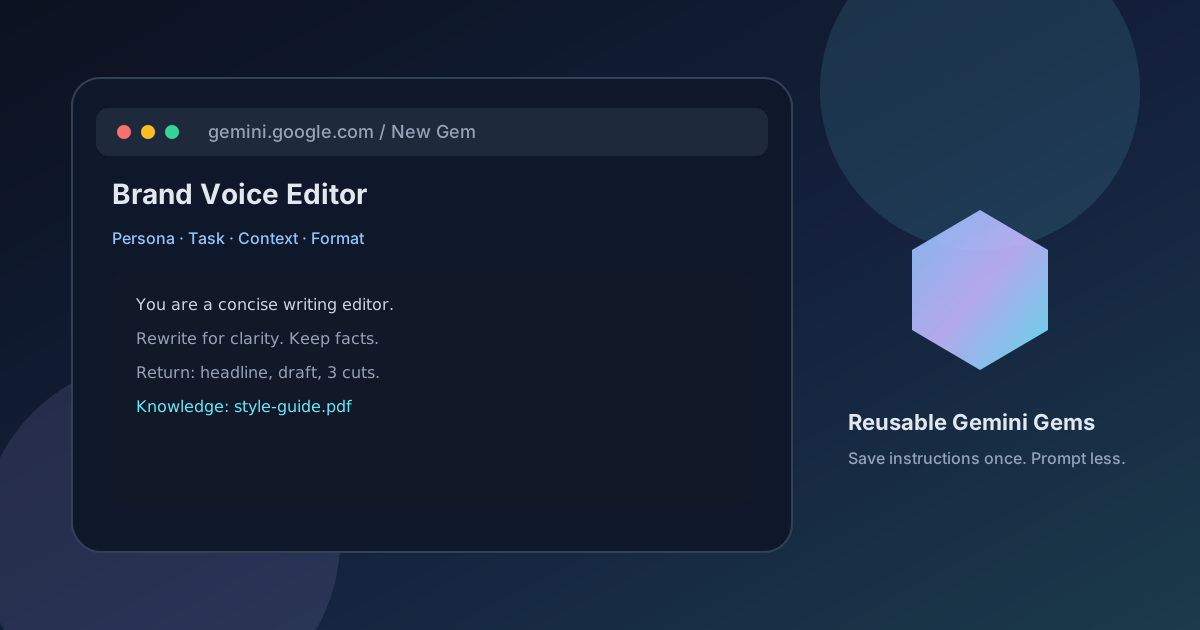
How to Create Custom Gemini Gems With Reusable Instructions
A practical guide to building Gemini Gems on the web: persona, task, context, and format instructions, knowledge files, preview-before-save, and Drive-style sharing.
Gemini Gems are saved setups for Gemini: a name, standing instructions, and optional reference files. You write the rules once, then open that Gem instead of retyping the same brief in a new chat.
Google documents Gems in Gemini Apps Help. You create and edit them on the web at gemini.google.com. After you save a Gem, you can start it from the Gemini mobile apps as well. This guide stays inside those official steps and the sharing model Google launched for Gems.

What a Gem actually stores
A Gem is not a separate model. It is Gemini with a fixed job description.
Google’s help article splits good instructions into four parts. You do not have to use every part, but using more than one usually improves the first reply:
- Persona — the role and tone
- Task — what the Gem should produce
- Context — background the model should assume
- Format — headings, lists, tables, or length limits
You can also attach knowledge files so the Gem can pull from a style guide, syllabus, or product brief instead of inventing house rules.
Who can create a Gem, and where
Official creation path:
- Open gemini.google.com and sign in.
- In the left sidebar, open Explore Gems (some accounts show this under Settings → Gems).
- Choose New Gem.
Google’s help page is explicit: custom Gems are created in the Gemini web app. The mobile app can run a Gem you already saved. If the phone only shows Google’s premade Gems, finish setup on a laptop or desktop browser.
Preview does not equal save. The builder has a preview pane on the right. Testing a prompt there does not store the Gem. Click Save after the preview looks right.
Google’s official walkthrough of a marketing Gem is a useful first watch before you write instructions:
Step-by-step: build a Gem you will reuse
1. Name the job, not the tool
Use a name that describes the output: “Weekly status editor,” “AP-style rewrite,” “Support reply draft.” Avoid putting the word “Gem” in the title. You already know it lives in the Gems list.
2. Write instructions in four blocks
Paste a structure like this into the Instructions box, then fill in your details:
Persona:
You are a careful editor for a technology blog. You write short sentences. You do not invent product names, prices, or dates.

Task:
Turn my rough notes into a publishable draft. Flag anything that still needs a source.

Context:
Audience: Android users and developers. Reading level: clear, not academic. Do not add politics or celebrity news.

Format:
Return:
1. Suggested title
2. Meta description under 155 characters
3. Draft with H2 headings
4. A short list of claims that still need official links
That is the same persona / task / context / format pattern Google recommends. Keep constraints in their own lines so they are hard to skip.
3. Let Gemini expand a thin first draft
If you only have one sentence (“edit my release notes”), use Use Gemini to re-write instructions in the builder, then cut anything that is too generic. Official help says the rewrite is a starting point, not the finished spec. Read it before you save.
4. Add knowledge files when the rules live in a document
Under Knowledge, click Add files:
- Upload from your device, or
- Attach a file from Google Drive (Workspace connection and Gemini activity settings must allow it)
Use this for a style guide, brand voice PDF, course syllabus, or API overview. Do not dump an entire Drive folder of unrelated decks. The Gem will treat attached files as context; extra files dilute the brief.
Google’s help article notes you can Disable knowledge citations if you do not want file citations in replies. Leave citations on when the Gem is drafting anything that will be published.
Supported file types and size caps live on Google’s separate Gemini Apps file-limits page. Check that page if an upload is rejected.

5. Preview with a real prompt, then save
In the preview pane, use a prompt you will actually type later:
- “Rewrite these release notes for app users, 180 words.”
- “Turn this meeting transcript into a one-page brief.”
If the first answer ignores format, tighten the Format block. If it invents facts, add a hard line: “If a fact is missing from my notes or knowledge files, write UNKNOWN instead of guessing.” Then click Save.
A concrete example: support-reply Gem
Suppose you answer the same three product questions every week.
- Create a Gem named “Support reply draft.”
- Persona: customer-support writer, calm, no slang.
- Task: draft a reply the human still reviews.
- Context: attach the public help article as a knowledge file.
- Format: greeting, three short paragraphs, one link, no legal promises.
- Preview with a pasted customer email.
- Save. On your phone, open Gemini → Gems → Support reply draft and paste the next ticket.
You still send the message. The Gem only removes the repeated briefing.
A second public tutorial that shows the same “instructions once, file in, output out” loop:
Share a Gem without pasting the prompt into Slack
Google added Gem sharing in September 2025. Sharing uses Google Drive permissions.
On the web Gem manager:
- Open Explore Gems (or your account’s Gems list).
- Next to a Gem you own, use Share.
- Add people by email or copy a link, with viewer or editor access.
Official notes that matter in practice:
- Sharing is a web control, not a mobile-only control.
- Recipients may see a notice that instructions can change.
- Shared Gems can appear under a “Shared with me” area after first use.
- Workspace admins can turn Gem sharing on or off under Generative AI → Gemini app → Gems.
- Google’s Workspace update states a Gem may not be shareable if certain non-Drive knowledge types are attached (for example some code folders or email sources). If Share is greyed out, remove those attachments or make a copy with only uploaded or Drive files.
Do not share a Gem that includes private customer data in the instructions or knowledge files. Treat the Gem like a Drive file.
You can also share a chat that used a Gem. Gemini Apps Help lets you share the conversation alone, or the conversation plus Gem instructions. Chat share links are public to anyone who has the URL. Do not use chat-share for internal documents.
Limits that keep the Gem honest
- Creation is web-first. Mobile is for running the saved Gem.
- Preview is not persistence. Save explicitly.
- Knowledge is optional but bounded. File types and sizes follow Gemini Apps limits, not unlimited Drive storage.
- Sharing follows Drive. Admin policy can block it at work.
- A Gem can still be wrong. Standing instructions reduce repeated prompting. They do not replace a source check.

Conclusion
A useful Gemini Gem is a short job description you will open more than twice. Write persona, task, context, and format as separate blocks. Attach only the files the job needs. Preview with a real prompt, click Save, then run the same Gem from the phone when you are away from the builder.
Start at gemini.google.com, open Explore Gems, and create one Gem for a task you already repeat this week. Leave Google’s premade Gems for experiments. Put your own rules in a Gem you control.
Sources
- Tips for creating custom Gems — Gemini Apps Help
- Gemini app now lets you share Gems with others — Google Keyword blog, September 18, 2025
- Introducing Gems sharing in the Gemini app, including admin controls — Google Workspace Updates
- Share your chats from Gemini Apps — Gemini Apps Help
- How to Create Marketing Materials with Gemini Gems — Google YouTube
Share this story


