How to Use Gemini Intelligence on Android: Widgets, Rambler, and App Automation
A practical guide to Gemini Intelligence on Android: multi-step app automation, Gemini in Chrome Auto Browse, smarter Autofill, Gboard Rambler, and Create My Widget.
Gemini Intelligence is Google’s name for a set of Android features that let Gemini act inside the phone instead of only inside a chat box. It was introduced on 12 May 2026 and is rolling out in waves, first on recent Samsung Galaxy and Google Pixel phones, then to more Android devices including Wear OS watches later in the year.
This is a user guide, not a developer API walkthrough. It covers what Google has publicly documented: multi-step app tasks, Gemini in Chrome, Autofill with Personal Intelligence, Rambler in Gboard, and Create My Widget.
What you need before you start
Availability is device- and region-dependent. Google said features start on the latest Galaxy and Pixel phones and expand later. Do not assume every Pixel or One UI phone already has every toggle.
Before you try the steps below:
- Update Google, Gemini, Gboard, and Chrome from Play Store
- Sign in with the Google account you actually use on the phone
- Open Settings → Google → Gemini (or the Gemini app settings) and confirm Gemini is enabled
- Treat Autofill and Personal Intelligence as opt-in. Leave them off until you want them
If a feature is missing, the phone is not on the current wave. That is expected, not a bug in your settings.
1. Multi-step tasks across apps
The headline capability is Gemini walking through a task that spans more than one app: booking a class, finding a syllabus in Gmail and adding books to a cart, or turning a notes grocery list into a delivery order.
Google’s own examples include:
- Long-press the power button over a grocery list in Notes and ask Gemini to build a delivery cart
- Photograph a travel brochure and ask Gemini to find a matching tour on Expedia for a group of six
- Track progress in notifications while Gemini works; confirm the last step yourself
Google states that Gemini acts only on an explicit command and stops when the task is done. You should still read the confirmation screen. An agent that can tap through a rideshare or shopping app can also pick the wrong time slot or the wrong store.
How to run a task safely
- Open the screen that holds the context (list, email, photo).
- Invoke Gemini the way your device already does (power button long-press or Gemini gesture).
- Give one concrete instruction: app name, quantity, date, and budget if it matters.
- Watch the notification trail. If Gemini asks for a login or payment screen, complete that yourself.
- Confirm or cancel the final action. Do not treat “working in the background” as “already paid.”
If the target app has no Gemini or AppFunctions-style hooks, the agent may fall back to on-screen taps. That path is slower and more brittle. Prefer apps Google has already tuned (food and rideshare were the early test set on Galaxy S26 and Pixel 10).
2. Gemini in Chrome and Auto Browse
Google said Android would get Gemini in Chrome starting in late June 2026. Inside the browser it can research, summarize, and compare pages. Chrome Auto Browse is the agentic piece: it can work through form-heavy flows such as booking an appointment or reserving parking.
Use it when the job is repetitive and the site is a standard booking form. Do not use it on banking, tax, or any page where a wrong click is expensive.
A simple Auto Browse loop
- Open Chrome on Android and sign in.
- Start Gemini in Chrome from the browser UI when it is available on your build.
- Paste or open the destination page first, then ask for the action (“reserve parking near the venue for Saturday 6 p.m.”).
- Stay on the tab until Gemini presents a review step.
- Submit the form yourself if the site requires a payment method you have not stored.
If Gemini in Chrome is not on your device yet, the desktop Auto Browse preview does not automatically appear on the phone. Wait for the Android Chrome update rather than sideloading flags.
3. Autofill with Personal Intelligence
Autofill with Google is no longer only saved passwords and addresses. With Gemini’s Personal Intelligence connected, Android can pull relevant details from connected apps to fill more of a complex form, including in Chrome.
Google is explicit: connecting Gemini to Autofill is opt-in, and you can disconnect it in settings at any time.
How to turn it on without oversharing
- Open Settings → Google → Autofill (wording varies by OEM skin).
- Enable Autofill with Google if it is off.
- Find the Gemini / Personal Intelligence connection and read the permission list before you accept.
- Test on a low-stakes form (event RSVP, store account) before a passport or insurance form.
- Turn the connection off again if the suggestions include data you did not expect.
Personal Intelligence is useful when the form wants a frequent-flyer number or a school name that lives in another Google app. It is the wrong tool if you share the phone or keep work and personal accounts mixed in one profile.
4. Rambler in Gboard
Rambler is Gemini Intelligence inside Gboard voice input. Literal dictation writes every “um,” restart, and filler. Rambler is built to take the important parts of messy speech and produce a concise message.
Google’s documented details:
- Audio is used to transcribe in real time and is not stored or saved
- The UI shows when Rambler is enabled
- It is built for mixed-language speech (Google’s example is English blended with Hindi)
How to dictate a message you would actually send
- Open any text field and tap the Gboard microphone.
- Switch on Rambler if the waveform / Gemini Intelligence control is separate from classic Voice Typing.
- Speak the way you talk, including corrections (“no, make that Thursday”).
- Stop. Read the polished draft. Rambler is an editor, not a witness. Fix names and numbers.
- Send only after you have scanned for a wrong date or the wrong recipient context.
Rambler is strongest for chat and short email. It is a weak fit for legal wording, medical notes, or anything that must be a verbatim transcript.
5. Create My Widget
Create My Widget is Google’s first generative-UI feature on Android widgets. You describe the dashboard you want in natural language; Gemini builds a resizable widget for the home screen. Google also documented Wear OS support.
Official examples:
- “Suggest three high-protein meal prep recipes every week”
- A weather widget that shows only wind speed and rain for a cyclist
Reporting on the feature notes a Create control in the widget picker, plus the ability to edit the result if the first pass is wrong.
How to build one
- Long-press the home screen → Widgets.
- Open Create / Create My Widget when it appears in the picker.
- Write a narrow prompt: metric, refresh cadence, and what to hide.
- Add the widget and resize it.
- Edit the prompt if the layout is noisy. Prefer one job per widget.
Good prompts name a source and a cadence (“show tomorrow’s rain chance and wind, refresh hourly”). Vague prompts (“make my home screen useful”) produce decorative clutter.
Widgets still need a data source. If the phone is offline or the underlying app has no data, the tile will be empty. That is normal.
Privacy and control, in practice
Google published a separate security and privacy explainer for Gemini Intelligence and repeats three product rules in the announcement:
- Features are meant to keep you in control of the last confirmation
- Autofill + Gemini is opt-in
- Rambler audio is not stored
That does not replace your own habits:
- Do not grant Autofill access on a shared profile
- Do not let Auto Browse complete a purchase unsupervised
- Review Gemini activity in your Google Account if you want a record of what ran
Conclusion
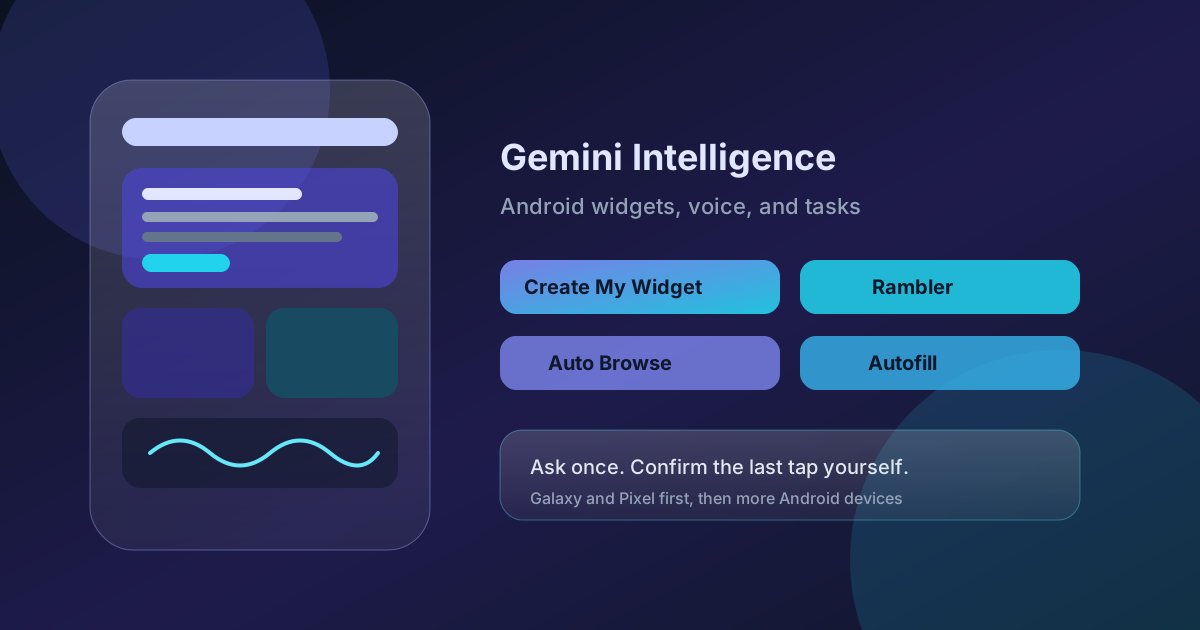
Gemini Intelligence is not a single app. It is automation across other apps, Chrome Auto Browse, richer Autofill, Rambler dictation, and generated widgets. Start with the two features you can verify in a minute: Rambler on a draft message, and one Create My Widget tile with a single metric. Add multi-step tasks and Auto Browse only after you have watched a full confirmation flow on a cheap action.
If a control is missing, wait for the device wave. The official list is still “latest Galaxy and Pixel first, then more Android devices later this year.”
Sources
- A smarter, more proactive Android with Gemini Intelligence — Google Blog, 12 May 2026
- Gemini Intelligence on Android — Android
- Android multi-step tasks — Google Blog
- Bringing Chrome AI to Android — Google Blog
- Personal Intelligence — Google Blog
- Android Gemini Intelligence security and privacy — Google Blog