
How to Use Google Labs CC as a Shared Family AI Agent
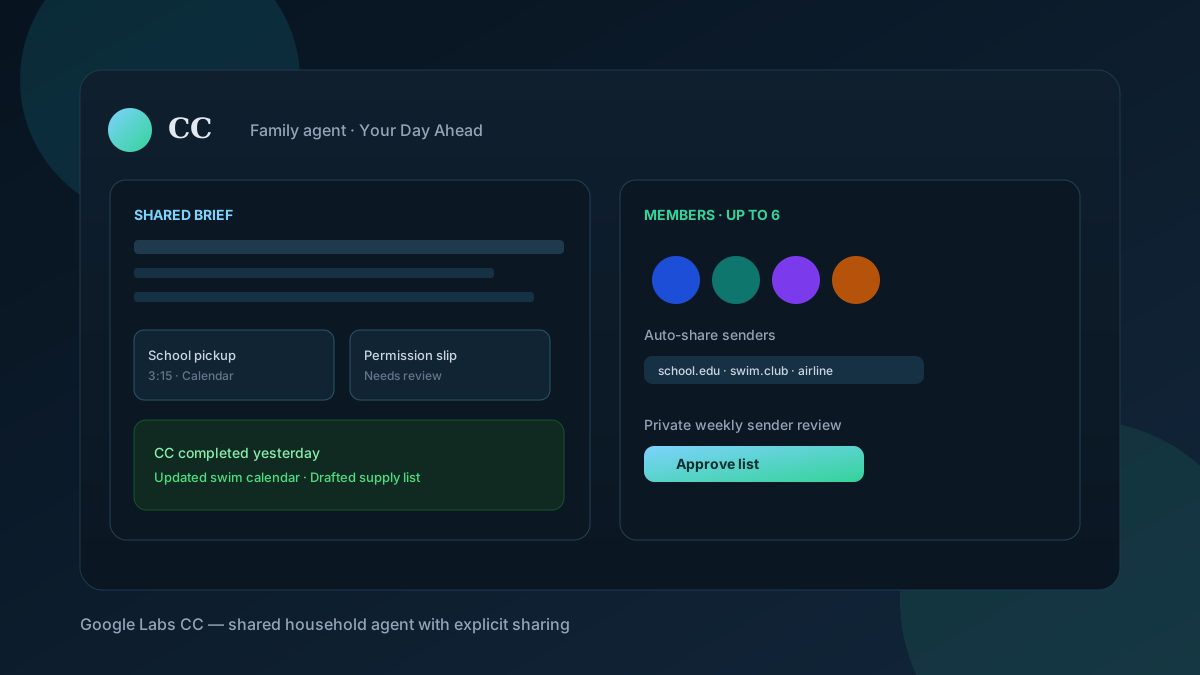
Set up Google Labs CC for a household of up to six people: join the waitlist, share only the senders you choose, read the shared Your Day Ahead brief, and keep Calendar and Tasks in sync.
School emails live in one inbox. Soccer practice lives in another. The permission slip is a PDF nobody opened. Google Labs rebuilt CC so one agent can sit in the middle of that mess — with its own Google account, not as a silent copy of one parent’s Gmail.
On 17 September 2026, Google Labs announced that CC is now a shared household agent. Up to six members can manage it. Each person chooses what CC may see. This guide covers who can join, how sharing works, and what to expect from the morning brief and task hand-off.
What CC is now
CC started in December 2025 as a personal Labs agent that emailed a Your Day Ahead briefing from Gmail, Calendar, and Drive. In May 2026 Google folded that personal habit into the Gemini app as Daily Brief.
The September 2026 version is different:
- CC has a verified Google account of its own, so it shows up as a distinct identity in mail and Chat.
- Up to six people can belong to the same CC.
- It only reads what each member explicitly shares (a school sender, a vet, a swim club, a one-off invite).
- It builds a shared morning brief and can write into a family Calendar or Tasks list.
- Behind the scenes, each CC runs on an isolated cloud computer on Google’s Antigravity agent harness and current Gemini models.
It is still a Google Labs experiment, not a finished Workspace product. Treat it that way.

Who can use it
From Google’s Labs page and the 17 September post:
- Age: 18+
- Account: personal / consumer Google account (not a managed Workspace school or work login)
- Region for the family product: United States on web and mobile, according to the September announcement
- Waitlist FAQ: the Labs help page still lists the United States and Canada for the original waitlist, with Google AI Ultra and other paid subscribers prioritized
Existing personal-CC testers should get an upgrade email. Everyone else joins at labs.google/cc.
You are not enrolled just because you have Gmail. Participation is voluntary. Labs also says you need Workspace Smart Features (sometimes labeled Smart Settings) turned on before signup works.
Join the waitlist or upgrade
- Open labs.google/cc on the web or on your phone.
- Sign in with the personal Google account you actually use for school and family mail — not a throwaway.
- Confirm you are 18+ and in a supported country.
- Join the waitlist. If you already used the first CC, watch for the upgrade mail instead of creating a second household.
- When access lands, CC will email you from its own account. That address is how the agent will appear to the group.
Google’s help text for the original product said you can write CC at your-username+cc@gmail.com. Confirm the exact address in the welcome mail after the family upgrade; do not assume the plus-address still applies to every household.
Add household members
Once your CC exists:
- Open CC on the web or mobile surface Google enabled for your account.
- Invite the other adults who should share logistics. Cap is six members including you.
- Each invitee signs in with their own personal Google account and accepts.
- Do not add a child’s account if that child is under 18. Eligibility is 18+.
- Agree, out loud, what CC is for: school and sports logistics, not every personal thread.
CC only answers group members. Google says it will not act or share outside the group without permission.
Decide what CC is allowed to see
This is the part that makes the product usable instead of creepy.
Auto “cc” CC
Pick senders you always want the agent to see going forward:
- The school domain or class newsletter address
- The swim center or league registrar
- Airlines and hotels you actually book for the household
- The vet or pediatric clinic if those mails are shared on purpose
Each week you get a private list of new senders. Approve or ignore them. Do not rubber-stamp every new address.
Send one item to CC
For a one-off:
- Forward a birthday invite or practice schedule to CC
- Send a photo of a flyer in email or Google Chat
- Share a Drive folder of forms, or add CC to a Calendar
That is how a paper invite becomes a calendar block without dumping your entire inbox into the agent.

Read the shared Your Day Ahead brief
Each morning CC sends a shared Your Day Ahead brief. Google’s description is specific: it is meant to show who needs to be where, what still needs doing, and what CC already finished yesterday.
A practical habit:
- Open the brief before anyone leaves the house.
- Correct mistakes by replying to the email or writing CC directly. Labs has said you can teach it, add to-dos, and fix facts that way.
- Check the family Calendar and Tasks list for anything CC added overnight.
- If a drop-off time is wrong, fix it once so shared memory does not keep repeating the error.
CC keeps household memory (grocery staples, usual restaurants) separate from personal memory (one person’s diet or time zone). Still review what it stored. Shared memory is only as good as the last correction.
Let CC take a task — with a check
Google lists examples the agent can attempt after it has context:
- Prefill a class registration or permission-slip PDF and ask you for missing fields
- Build a school-supply shopping list
- Draft a weekly meal plan
- Create a shared Doc or Sheet the group can edit
- Check live drive times between back-to-back activities via the Maps API
None of that should run on autopilot for payments, medical forms, or legal documents. Give CC the PDF, answer the missing-field prompts, then you submit the form.
How this differs from Gemini Daily Brief
Use Daily Brief in the Gemini app when you want a personal morning digest from your Gmail and Calendar.
Use CC when the problem is coordination across accounts: two adults, several after-school programs, and mail that never lands in the same inbox.
Daily Brief is a Gemini product surface. CC is still a Labs experiment with a waitlist, a separate agent account, and household permissions. Do not assume every Daily Brief user automatically gets the six-person CC. Google said existing CC testers will be offered the upgrade.
Limits and safety
- Experimental software will misread a flyer or invent a time. Confirm before you drive.
- Sharing a sender is not the same as sharing every attachment in that thread. Skim what CC ingested the first week.
- Do not feed it passwords, tax IDs, or custody documents.
- Disconnect any time. Labs states participation is voluntary and you can leave.
- Workspace / school accounts are outside the published consumer experiment.
Conclusion
Household CC is Google’s answer to logistics that no single inbox owns. Give it a verified agent account, cap the group at six adults, auto-share only the senders that matter, and treat the morning brief plus Calendar writes as drafts you still own.
Join at labs.google/cc if you are 18+ with a personal Google account in a supported region. If the waitlist is closed in your country, keep using Gemini Daily Brief for personal planning and wait for Labs to widen the household experiment.
Sources
- The new CC, an AI agent built for families — Google Labs (17 September 2026)
- CC from Google Labs helps you stay productive — Google Labs (original personal agent)
- CC waitlist and FAQ — Google Labs
- Gemini Daily Brief — Gemini
- Antigravity — Google


