How to Use Google Photos Video Remix With Gemini Omni
A practical Android and iOS guide to Video Remix in Google Photos: eligibility, Create-tab steps, templates for relighting and style, clip limits, and how Gemini Omni powers the edits.
Google Photos already stores the clips you would never open in a desktop editor. Video Remix, announced on July 8, 2026, is the Create-tab tool that restyles a short slice of those clips with Gemini Omni instead of a timeline.
This guide follows Google’s product blog and the official Photos Help article for Android. Features are limited by plan, country, age, clip length, and daily generation caps. If a template is missing, treat that as a rollout or quota issue first.
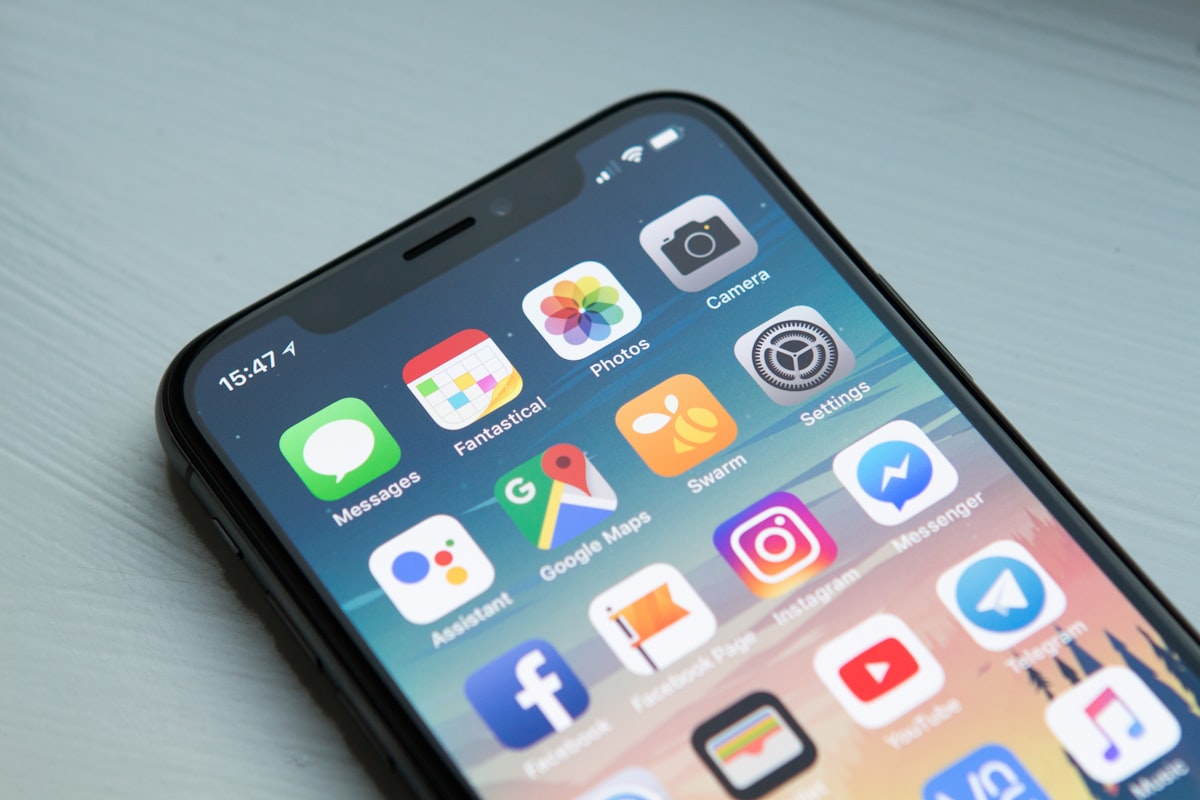
A phone-first workflow is the point: Video Remix lives in the Google Photos Create tab, not in a separate editor.
What Video Remix actually does
Video Remix does not replace the full video editor (trim, stabilize, Enhance). It takes a backed-up clip, lets you pick a template, then generates a new stylized version.
Google groups the templates into three families in Help:
- Reimagine — change the background (examples Google lists include a beach sunset or a coffee shop)
- Filters — apply cinematic relighting such as golden hour or a dreamy glow
- Art styles — apply looks such as anime, watercolor, or sketchbook
The July 2026 Photos blog also lists oil painting and raw sketchbook among the artistic treatments, plus examples such as setting a clip in a greenhouse or adding a morning glow to a dark scene.
The model behind those templates is Gemini Omni, Google DeepMind’s 2026 generative model that takes existing video (plus other inputs) and produces a new clip. Omni Flash first shipped in the Gemini app, Google Flow, and YouTube Shorts in May 2026. Photos is a later consumer surface that wraps Omni in templates instead of free-form chat.
Who can use it
Google’s launch post says Video Remix started rolling out on July 8, 2026 to eligible Google AI Plus, Pro, and Ultra subscribers in select countries.
TechCrunch, citing Google, listed the initial countries as the United States, Argentina, Bangladesh, Brazil, Colombia, Egypt, India, Indonesia, Japan, Mexico, Pakistan, Philippines, South Korea, and Turkey. CNET noted an 18-or-older gate for the launch.
Country lists and plan names change. Confirm on your own account:
- Update Google Photos on Android or the iOS app.
- Sign in with the Google Account that holds the AI subscription.
- Open the Create tab. Look for Video remix under Tools, or templates under Remix your videos.
If the tool is absent, you are outside the current rollout, below the age gate, or not on a supported AI plan.
Watch how Gemini Omni treats existing video
Google’s official Omni explainer is the best visual preview of the same model family Photos is using. Video Remix is template-driven; Omni in Gemini and Flow is conversational. The underlying idea — restyle a real clip instead of generating from a blank prompt — is the same.
For a slightly longer walkthrough of conversational video edits, Google also published How to edit and create videos with Gemini Omni.
Step-by-step on Android
These steps match Make creations with Google Photos for Android.
1. Back up a short, well-framed clip
Video Remix only works on backed-up videos. Help also requires:
- Source video under 60 seconds
- A trimmed segment between 1 and 10 seconds
- Aspect ratio 9:16 or 16:9 (other ratios are center-cropped; square clips default to 9:16)
Pick a clip with a clear subject and enough light. Background swaps and art styles fail more often on crowded, shaky, or night footage.
2. Open Video Remix from Create
- Open Google Photos.
- Tap Create at the bottom.
- Open Video Remix in either place:
- Under Remix your videos, tap a template, or
- In Tools, tap Video remix (that screen lists templates).
- The first time, read the acknowledgement screen and tap Try now.
3. Choose a template that matches the job
Use the family that solves the actual problem:
- Dark indoor clip → a Filters relight such as golden hour or morning glow
- Boring wall or parking lot → Reimagine background
- Shareable art, not a documentary record → Art styles
Do not start with the strongest art style if you only needed better light. Relighting is the more useful everyday template.
4. Pick the clip and trim to 1–10 seconds
- Select the video.
- Drag the trim handles so the keep-range is between one and ten seconds.
- Swipe back to the picker if you chose the wrong file.
- Tap Generate.
Wait for the new clip. Google does not publish a fixed render time in Help; it is usually short, but it depends on load and plan.
5. Save or share a copy
- Save writes a new video into Photos. Keep the original.
- Share sends the remix without overwriting the source.
Treat the output as a derived file. Do not delete the original until you have confirmed faces, text, and motion still look acceptable.

Save the remix as a new file. The source clip stays in your library for a conventional edit if the generation misses.
Practical examples that stay inside official templates
Dim kitchen clip. Trim to the two seconds where someone is facing the camera. Use a Filters relight (golden hour / morning glow). Check skin tone and the color of food before you share.
Travel selfie in a parking lot. Use Reimagine if you only need a different backdrop. Confirm the subject is not warped at the edges after the crop to 9:16 or 16:9.
Kid drawing at a table. Watercolor or sketchbook can look charming. Do not use a background swap that invents a location the child was not in if you are sending the clip to family as a record of the day.
Product demo on a desk. Relight first. Art styles usually hide labels and make the clip useless as documentation.
Quotas, upgrades, and daily limits
Google Help is explicit about running out of generations:
- If you exhaust the allowance, Photos may prompt you to upgrade to a Google AI plan for more generations.
- If you already have Google AI Pro or Ultra and you hit the cap, you wait until the next day.
Google does not publish a single public number that applies to every plan and region. Do not assume unlimited renders because you pay for Ultra.
How this differs from Photo Remix and Photo to video
The Create tab already had still-image tools from 2025:
- Remix on photos applies anime, comic, sketch, or 3D-style stills.
- Photo to video (originally Veo 2 in the 2025 announcement) animates a still into a short clip.
Video Remix is the later tool that starts from motion you already shot. Use Photo to video when you only have a still. Use Video Remix when the motion is the point and you want a new look on a 1–10 second slice.
Limits worth reading before you generate
- It is generative. Faces, hands, text on signs, and pets can drift. Compare against the source.
- Cropping is automatic for odd aspect ratios.
- Only backed-up clips are eligible.
- 1–10 second output window is a hard Help constraint, even if the source is almost a minute.
- People in the frame. Get consent before you restyle someone else’s face into anime or drop them into a fake cafe.
- Not a color-accurate editor. For a wedding or a product shot that must match real light, use Enhance / manual tools instead.
Conclusion
Video Remix is useful when you already have a short, backed-up clip and you want a new look without leaving Google Photos. Open Create, pick Reimagine, Filters, or Art styles, trim to 1–10 seconds, generate, and save a copy.
Start from Google’s Video Remix announcement and the Photos Help creation article. Check your AI plan and Create tab before you assume the feature is missing. Keep the original clip; the remix is a stylized derivative, not a replacement archive.
Sources
- Create videos in seconds with Google Photos’ Video Remix — Google Blog, July 8, 2026
- Make creations with Google Photos (Android) — Google Photos Help
- Introducing Gemini Omni — Google Blog, May 19, 2026
- Google Photos adds a new AI Video Remix tool — TechCrunch
- What is Gemini Omni? — official Google video