

Set Up Google Wallet and Google Pay in Nigeria on Android
Complete step-by-step guide to set up Google Wallet and Google Pay on Android in Nigeria. Add supported bank cards, enable NFC tap-to-pay, and pay securely.
Google Wallet and Google Pay launched in Nigeria on October 28, 2026. Android users can now add supported bank cards and make contactless payments in stores, apps, and online.
This guide shows exactly how to set up Google Wallet on your Android phone in Nigeria, add eligible cards from major banks, turn on NFC, and start using tap-to-pay. The process follows official Google instructions and works for Android 9 and higher devices with NFC.
What Google Wallet Offers in Nigeria
Google Wallet stores your payment cards, loyalty cards, event tickets, and boarding passes in one place. Google Pay handles the payments.
You can tap your phone at supported terminals instead of reaching for a physical card. Online checkouts also accept Google Pay when the merchant supports it. The system uses device tokens so merchants never see your real card number.
Supported banks at launch include UBA, FirstBank, GTBank, and Zenith Bank. Specific Mastercard and some Visa cards from these institutions work. Check with your bank if your particular card qualifies.

Requirements Before You Start
Your Android phone must meet these conditions:
- Android 9 or higher
- NFC hardware
- Screen lock (PIN, pattern, password, fingerprint, or face unlock)
- Google Account signed in
- Personal profile (not a work profile)
- Up-to-date Google Play Services and Google Wallet app
Rooted devices and custom ROMs are not supported. Most modern Android phones already have the Google Wallet app pre-installed. If not, download it from the Play Store.
Step-by-Step: Install and Open Google Wallet
- Open the Google Play Store on your phone.
- Search for “Google Wallet”.
- Tap Install or Update if the app is already present.
- Open the app and sign in with your Google Account.
- Follow any on-screen prompts to complete basic setup.
- Set a screen lock if the app requests one. This is required for contactless payments.
The app pulls existing cards from your Google Account if you added them previously.
How to Add a Supported Nigerian Bank Card
- Open Google Wallet.
- Tap Add to Wallet at the bottom of the screen.
- Select Payment card.
- Choose New credit or debit card.
- Scan the front of your physical card with the camera, or tap Enter details manually.
- Confirm the card number, expiry date, and CVV.
- Read and accept the issuer terms.
- Complete bank verification (usually a one-time code via SMS or through your banking app).
Supported cards include:
- UBA: Mastercard credit, debit, prepaid; Visa prepaid
- FirstBank: Mastercard debit
- GTBank: Mastercard debit and prepaid
- Zenith Bank: Mastercard credit, debit, prepaid
If your bank offers an “Add to GPay” or “Add to Google Wallet” button inside its own app, use that method instead. It often completes verification faster.
Enable NFC and Set Google Pay as Default
Contactless payments require NFC.
- Open your phone’s Settings.
- Search for “NFC” or go to Connected devices / Connections.
- Turn NFC on.
- Look for Contactless payments or Default payment app.
- Select Google Wallet (or Google Pay).
On Samsung phones the path is usually Settings > Connections > NFC. On Pixel phones it is Settings > Connected devices > Connection preferences > NFC.
Once NFC is on and Google Wallet is the default, you can pay without opening the app.
How to Make a Tap-to-Pay Purchase
- Look for the contactless symbol or Google Pay logo on the terminal.
- Unlock your phone.
- Hold the back of your phone near the terminal for a few seconds.
- Authenticate with your fingerprint, face, or PIN if prompted.
- Wait for the checkmark confirmation.
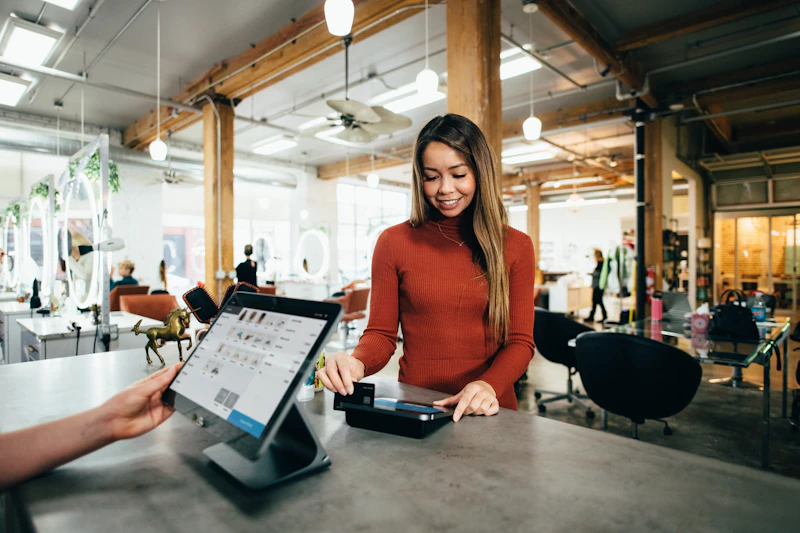
You do not need an internet connection for in-store taps. The phone communicates directly with the terminal via NFC. For online payments, choose Google Pay at checkout and confirm the transaction.
Security Features You Should Know
Google Wallet uses tokenization. Each card gets a unique device token instead of storing your real card number on the phone. Merchants receive only the token.
If your phone is lost or stolen, open Find My Device on another device or at android.com/find, lock the phone, or erase it. Removing the screen lock also removes cards from Wallet as a safety measure.
Always verify the merchant terminal shows the contactless or Google Pay symbol before tapping. For additional Android security tips, see our guide on Android theft protection setup.
Tips for Nigerian Users
- Confirm your specific card is supported by asking your bank or checking inside the Google Wallet app when you try to add it.
- Update Google Wallet and Google Play Services regularly for the latest security patches.
- Wear OS watches linked to the same Google Account can also make contactless payments once Wallet is set up.
- Loyalty cards and tickets can be added the same way under Add to Wallet.
- If a card fails to add, contact your bank and request they approve the digital wallet provisioning.
Troubleshooting Common Issues
Card not added: Double-check the name, CVV, and billing address match your bank records exactly. Try adding through the bank’s app instead.
NFC not working: Restart the phone, toggle NFC off and on, and confirm Google Wallet is the default payment app.
Payment declined at terminal: Ensure the terminal supports contactless payments and that your bank has activated the feature for your card.
App missing: Download Google Wallet from the Play Store. Older Android versions below 9 cannot run the current app.
Conclusion
Setting up Google Wallet and Google Pay on Android in Nigeria takes only a few minutes once you have a supported card. Open the app, add your UBA, FirstBank, GTBank, or Zenith card, enable NFC, and start tapping to pay.
The launch brings contactless payments and digital passes to millions of Android users across the country. Keep your phone updated and your screen lock active to stay protected.
Sources
- Google Wallet and Google Pay are now available in Nigeria
- Add a debit or credit card to the Google Wallet app – Google Wallet Help
- Pay contactless with your phone – Google Wallet Help
- Official bank announcements regarding Google Pay support (October 2026)
Share this story


