

How to Use Gboard Rambler on Android
Step-by-step guide to enable and use Gboard Rambler on Pixel 11 series for clean voice typing powered by Gemini Intelligence.
Voice typing has long forced people to speak in short, careful sentences so the phone does not capture every pause or filler. Gboard Rambler changes that. It uses Gemini to turn natural spoken thoughts into clear, structured text.
This guide shows how to turn on Rambler, dictate a message, revise it with voice, and adjust settings. It follows Google’s official Gboard support steps for Pixel 11 series devices.
What Rambler does
Rambler sits inside Gboard. You speak the way you normally talk. It removes filler words such as “um” or “uh”, handles mid-sentence corrections, and formats the result with proper grammar and punctuation.
Unlike standard voice typing, it does not stream every word onto the screen as you speak. A waveform appears while you talk. When you finish, the polished text appears. You can then ask it to make the text shorter, more professional, or add emoji.
It works in any app that uses Gboard, including Messages, Gmail, Docs, and third-party apps. Audio is processed for transcription only and is not stored.
Check requirements before you start
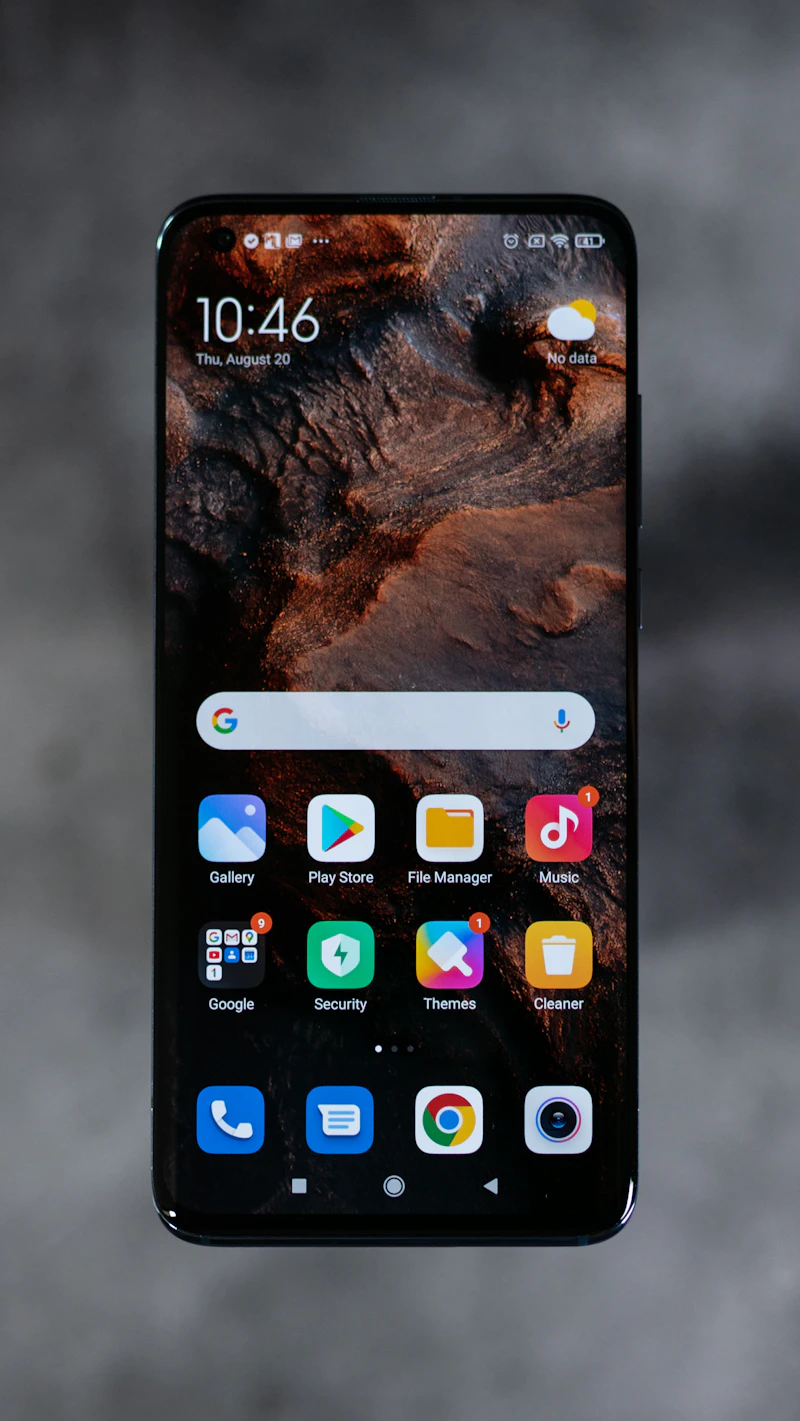
Rambler is currently limited to Pixel 11 series phones. You also need:
- The latest Gboard version set as the default keyboard.
- Microphone permission granted to Gboard (“Allow only while using the app”).
- An internet connection for the full feature set. Basic cleanup still works offline.
If your phone does not meet the hardware requirements, the option will not appear. Google has indicated wider availability later, but official support today lists only the Pixel 11 series.
Enable Rambler in Gboard
Open any app where you can type, such as Google Messages. Tap a text field so Gboard appears.
Tap the microphone icon in the toolbar. If an introduction dialog appears, tap Start. This activates Rambler for the first time.
If no dialog appears:
- Tap the menu icon (three dots or four squares) on the Gboard toolbar.
- Choose Settings.
- Select Voice typing.
- Choose Rambler instead of Standard.
Return to your app. Open Gboard again and tap the microphone. A glowing animation confirms Rambler is active.
You can switch back to Standard voice typing at any time in the same Voice typing menu.
Dictate a message
Tap the microphone and start speaking. Talk at a normal pace. You do not need to pause for commas or speak in perfect sentences.
Example: “Hey um do you want to get lunch tomorrow? No wait I have a thing. Let’s do Wednesday at Amy’s Pizza. And yeah I’ll let you order the pineapple.”
Tap Done (or release if you held the microphone). The cleaned text appears in the field. It captures the final intent and drops the fillers and corrections.
The text box stays empty while you speak so you are not distracted by partial results.

Revise and edit with voice
After the text appears, tap the microphone again to continue or revise. You can speak natural requests:
- “Make this more professional.”
- “Make this shorter and more direct.”
- “Change blue to green.”
- “Add a sushi emoji.” or “Add some emoji.”
Rambler understands these without special command phrases. It can also edit text already in the field.
If you are multilingual, switch languages mid-sentence. Supported languages include English, Spanish, French, German, Hindi, Japanese, Korean, Portuguese, Arabic, Italian, and Russian. It processes the blend in one pass.
Manage settings and offline use
Open Gboard Settings > Voice typing to toggle between Rambler and Standard. Standard restores word-for-word dictation with its existing advanced features.
When offline or on a weak connection, Rambler still cleans basic punctuation and capitalization. Advanced style changes and complex rewrites require a network. If the connection drops mid-dictation, a Retry button appears after you finish.
Usage limits apply to keep the service responsive for everyone. Google notes that audio, text, and corrections are processed temporarily and deleted after delivery.
Tips for better results
Speak the final idea you want, even if you change your mind while talking. Rambler reads the whole utterance.
Grant the microphone permission only while the app is in use for better privacy control.
Test it first in a notes app or draft message before sending important text. Review the output, as any AI feature can occasionally miss nuance.
Pair Rambler with other Gemini Intelligence tools on your Pixel. For example, you can dictate a note and later ask Gemini in the app to turn it into a structured list. See our guide on adding Gemini models to Android apps for related developer workflows.
Conclusion
Gboard Rambler removes the friction of traditional voice typing on supported Pixel devices. You speak naturally, it delivers clean text, and you can refine it with simple voice requests.
Update Gboard, set it as default, grant the microphone permission, and select Rambler in Voice typing settings. The feature is available today on the Pixel 11 series and works across any text field that uses Gboard.
Sources
- Google Gboard Help: Rambler voice input on Gboard (support.google.com/gboard/answer/17468539)
- The Android Show: I/O Edition (May 2026 announcement of Gemini Intelligence features)
- Google Play listing for Gboard (latest version required)
Share this story


